

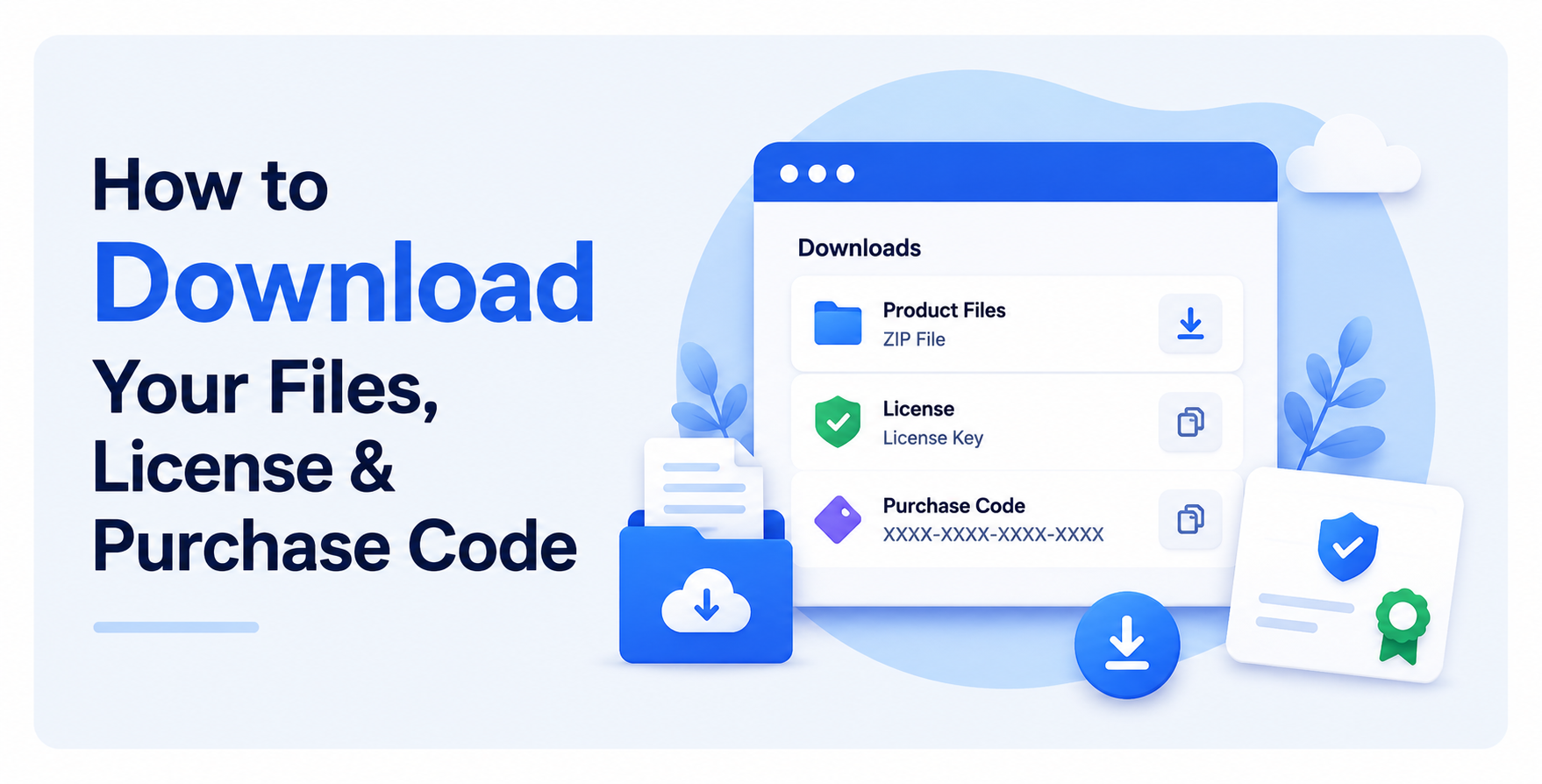
How to Download Your Files, License & Purchase Code
After your payment is confirmed, everything you bought is available in your account right away. This guide shows you where to find your product files, your license certificate, and your purchase code.
Download Your Files
1. Open Your Downloads
-
Click your profile icon in the top-right corner, then select Account Settings.
-
Open the Downloads tab.

2. Download the Product
-
Find the product you want in the list. Use the search box at the top if you have many products.
-
Click the green Download button on that product.
-
Choose All files & documentation to save the .zip package to your computer.

Download Your License & Purchase Code
-
On the same product, click the Download button again.
-
Choose one of the following options:
-
License certificate & purchase code (PDF) — a formatted certificate to print or archive.
-
License certificate & purchase code (text) — a plain .txt file, easy to copy your code from.
-
Keep this file handy — you'll need your purchase code later.
Note: A purchase code is generated for every product, including free products. This purchase code is required to activate the product. You must enter it during activation, so make sure you download and save it even for free items.

Quick Checklist
✅ Go to Account Settings → Downloads.
✅ Download All files & documentation (the .zip).
✅ Download your license certificate (PDF or TXT) to save your purchase code.
✅ Keep your purchase code safe for support and renewals.